iOS lets you lock your Hidden album behind biometric authentication.
On your iPhone and iPad, you can lock media files in the hidden folder, and they can only be seen when you decide to unlock it using biometrics—Face ID or Touch ID.
Do you have any pictures and videos on your iPhone that you are worried about keeping there? These could be personal photos with loved ones or sensitive documentation that may be a point of concern in someone else’s hands. Well, the good news is that you need not worry about this, and you can comfortably lock these images in the ‘Hidden’ tab inside the Photos app.
This means that whenever someone is snooping around your phone, they won’t stumble upon anything that may raise an eyebrow or two. This works by locking certain media files in the hidden folder, and they can only be seen when you decide to unlock it using biometrics—Face ID or Touch ID. However, to lock the hidden album, you must be on iOS 16 or iPad OS 16.1 and macOS Ventura.
To do the same for your media files in the Apple Photos app, follow these steps:
- Head to the Photos app on your iOS device.
- Next, select the photo or video that you want to hide.
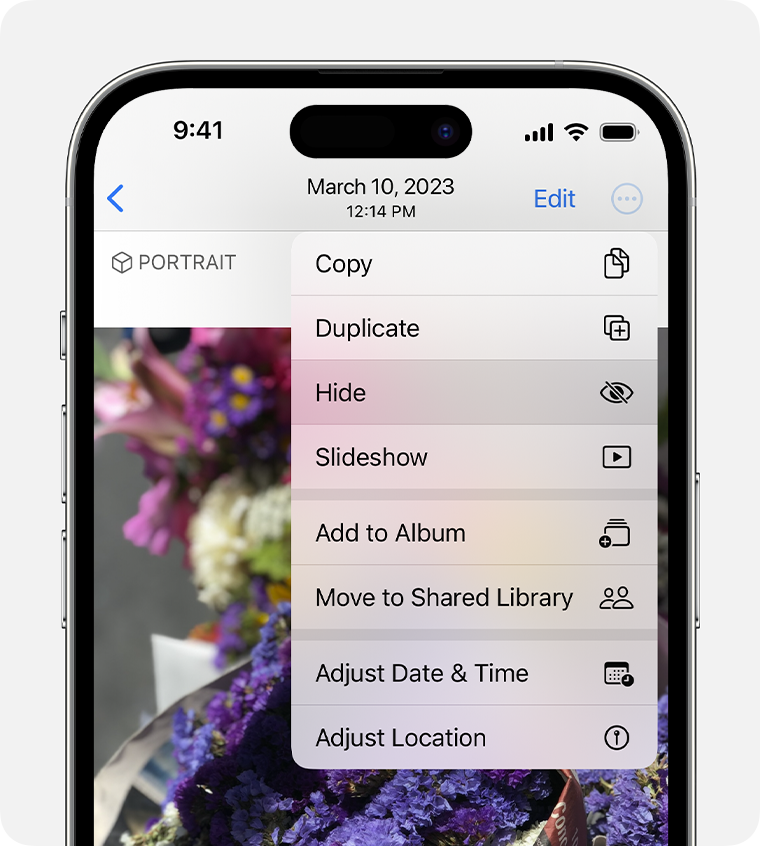
- Tap the three dotted more button in the top right.
- Tap on Hide.
- That’s it! Your file is now securely hidden.
- If you want to access it, head to the Albums tab, scroll down to find the Hidden tab in utilities.
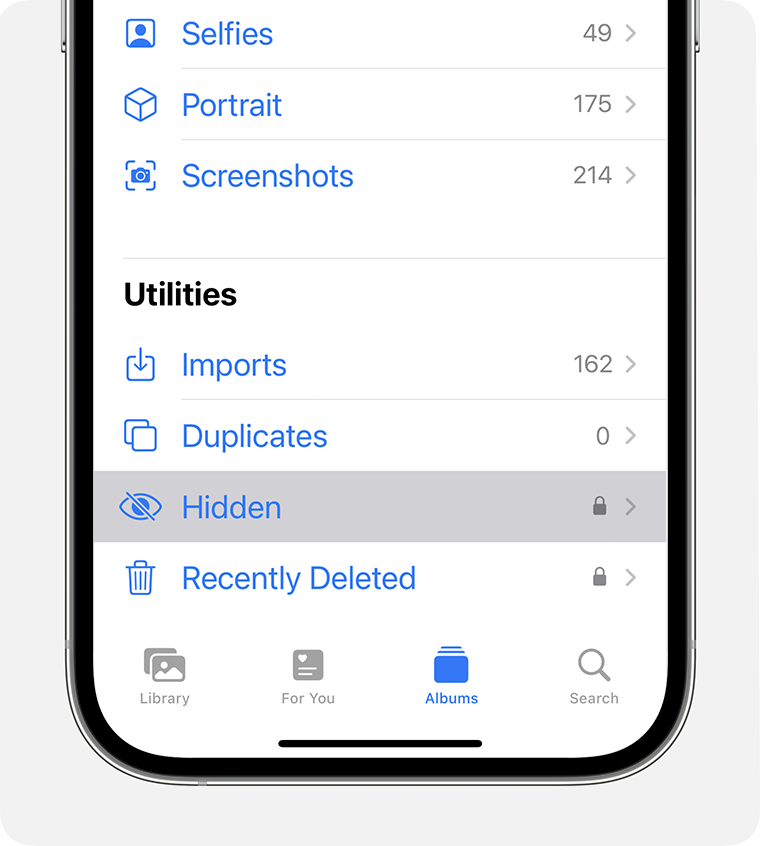
- Now you can unlock it using Face ID or Touch ID biometrics depending on what phone you have.
To perform the same action on iPad OS, you’ll need to follow identical steps for locking or unlocking your photos. However, keep in mind, as mentioned earlier, that you pmust be on iPad OS version 16.1 for this functionality to operate.