
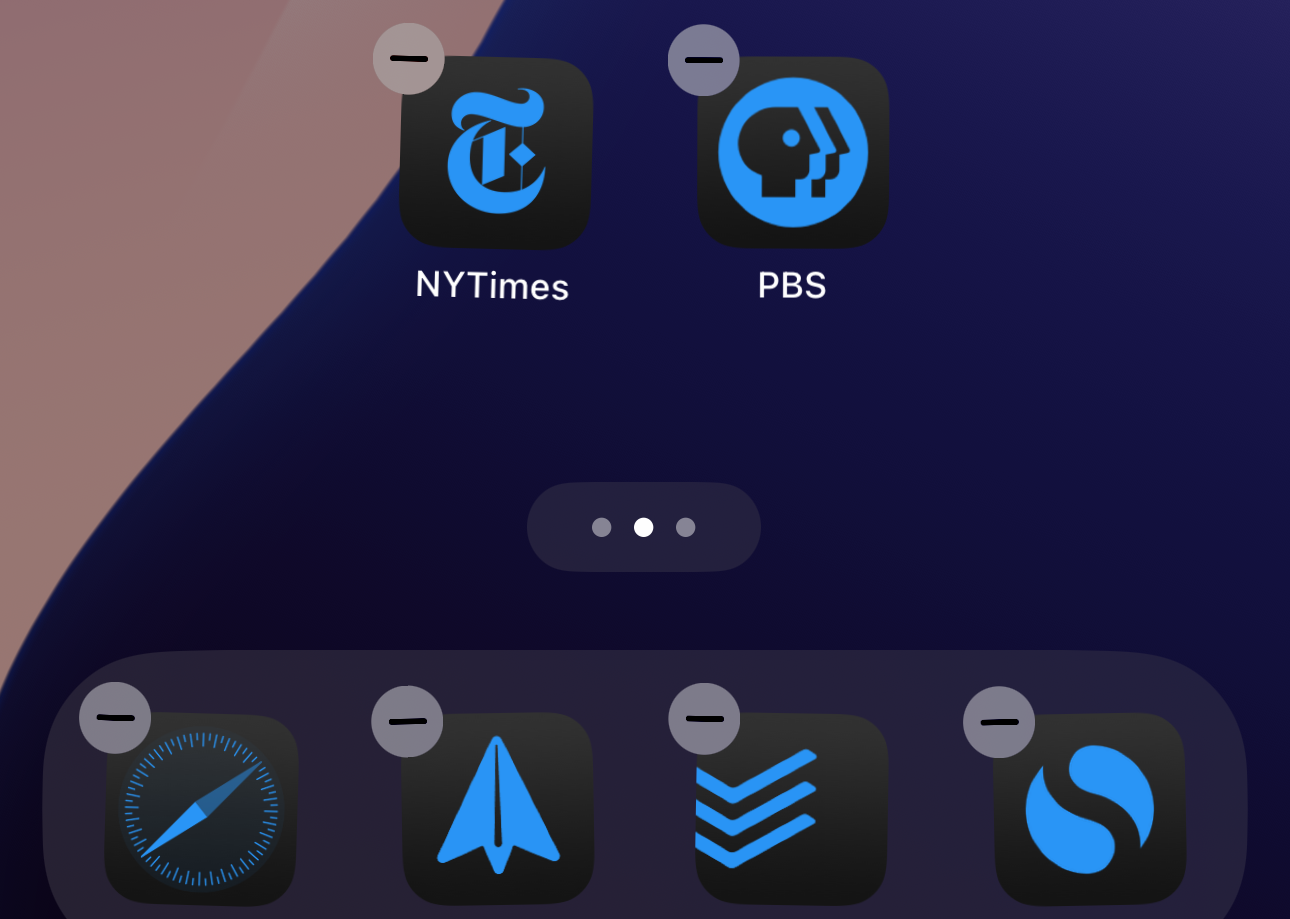
(Relatedly, you can now resize widgets directly from the home screen without opening the customization panel, which is a nice tweak.)
It’s not a dramatic change, but it does give the home screen a cleaner look. Of course, it can make it harder to identify your apps if you’re not very familiar with the icons—especially in tandem with the next big customization feature, colors.
There are lock screen changes, too
iOS associates lock screens and the home screen in various ways, so it’s worth taking a moment to name the updates to the lock screen, too.
There aren’t a ton, but one of them is a doozy: You can now change the two long-press buttons in the lower-left and lower-right corners of the lock screen. Previously, you had the flashlight icon on the left and the camera one on the right.
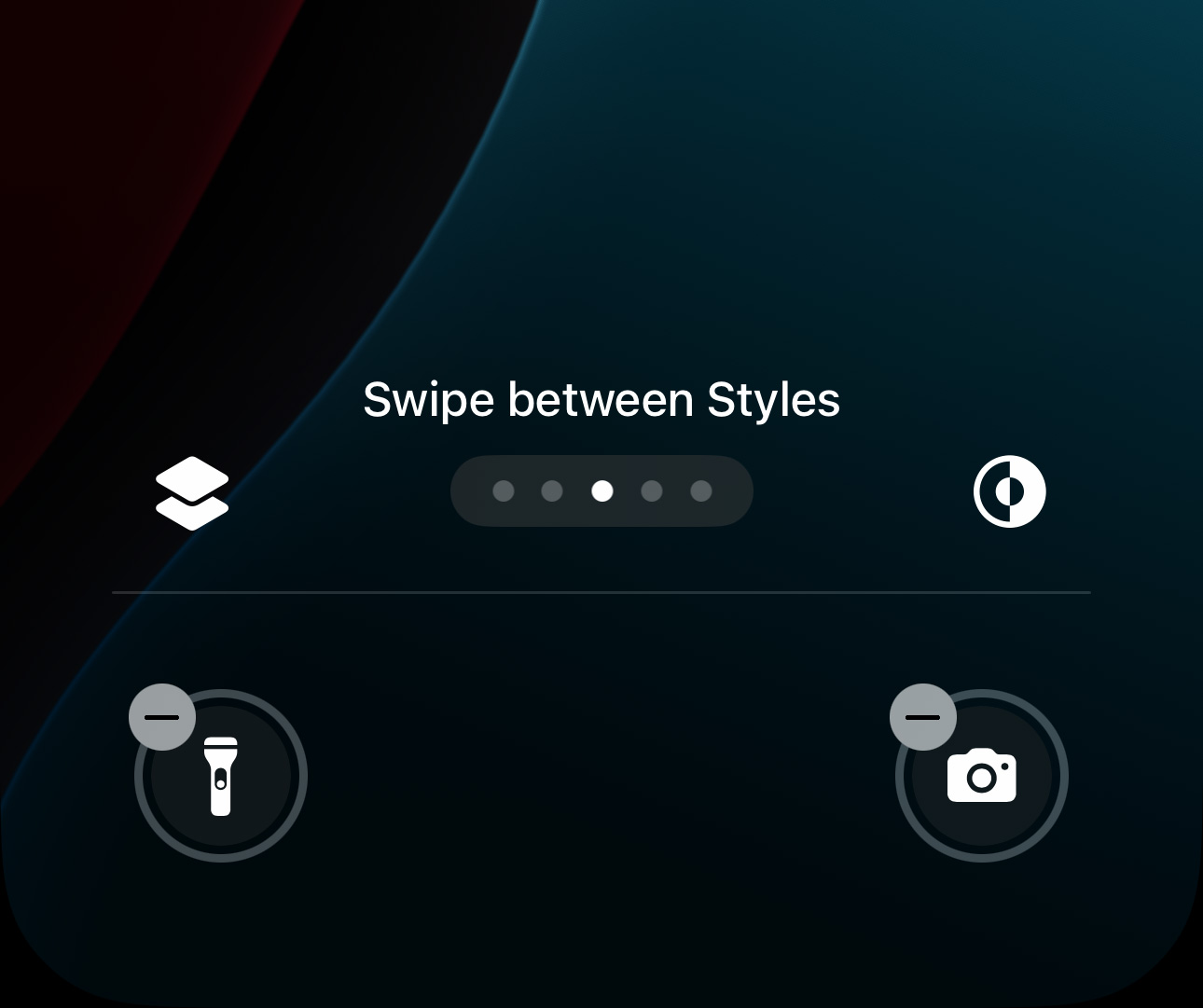
You access this through the lock screen customization view (reached by long-pressing on the lock screen). There are now “-” buttons next to each of these two icons. Tapping that removes the icon, leaving a “+” sign in its wake. You can in turn tap the + sign to bring up a scrollable, searchable list of controls you can put here instead of what was there before.
Samuel Axon
From the lock screen customization view, you can now tap these “-” buttons to remove the existing controls.
Samuel Axon

Samuel Axon
You can replace those controls with anything from this control picker.
Samuel Axon
Samuel Axon
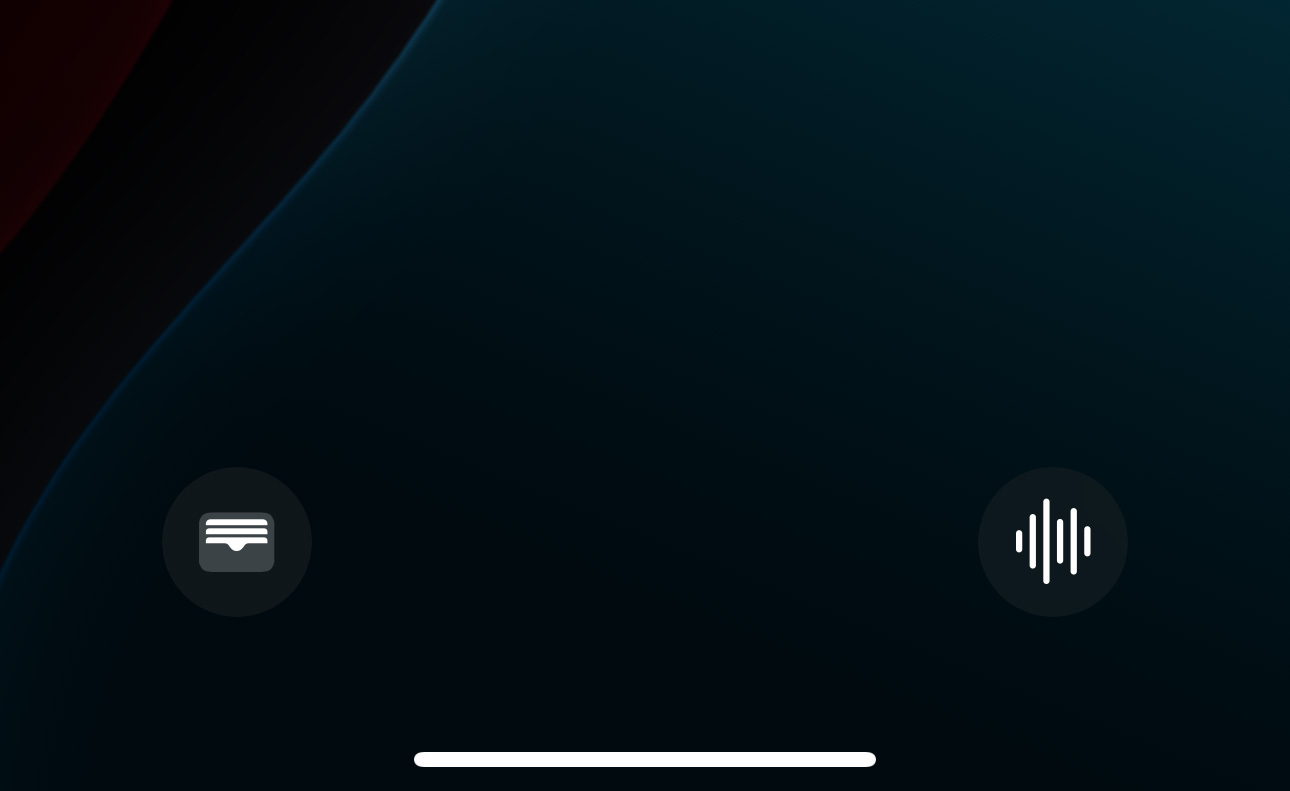
Here we have the Wallet and Voice Memo controls instead of flashlight and camera. Looks weird after all these years, doesn’t it?
Samuel Axon
You can replace those controls with anything from this control picker.
Samuel Axon
Here we have the Wallet and Voice Memo controls instead of flashlight and camera. Looks weird after all these years, doesn’t it?
Samuel Axon
Options include Calculator, Home, Translate, the dark mode toggle, clock functions like timers and alarms, airplane mode, Apple TV remote mode, Silent mode, Shazam, Wallet, and a bunch more, including numerous accessibility features.
It makes sense for Apple to change this now, of all times; the introduction of the Capture button in the new iPhone 16 series of phones makes the Camera icon here pretty pointless—but you can keep the camera icon here if you have an older phone.
Putting it into practice
There are numerous ways you can approach using these features, of course, but I thought of one that makes a lot of sense right off the bat: I put the icons for apps I use the most toward the bottom of the screen, where I can reach them when I’m holding the phone with one hand.